Heyho,
a small modeling question. Is it possible to link a form model text element with a condition regarding a field in a way, that i can show or hide the text element depending on the value of the field
Heyho,
a small modeling question. Is it possible to link a form model text element with a condition regarding a field in a way, that i can show or hide the text element depending on the value of the field
The text element would be in a control grid. You could model a boolean field, calculcated with the condition of your choosing and then use the value of that boolean to show the control grid with the text element or not.
Yes, this is possible. But you need to consider a specific modeling solution.
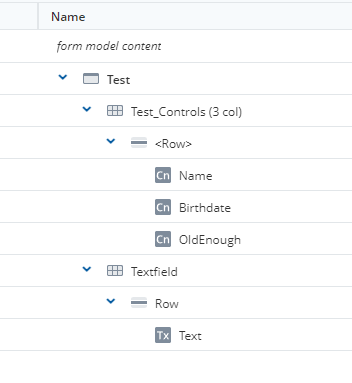
You have a Form Model which is looking like this:
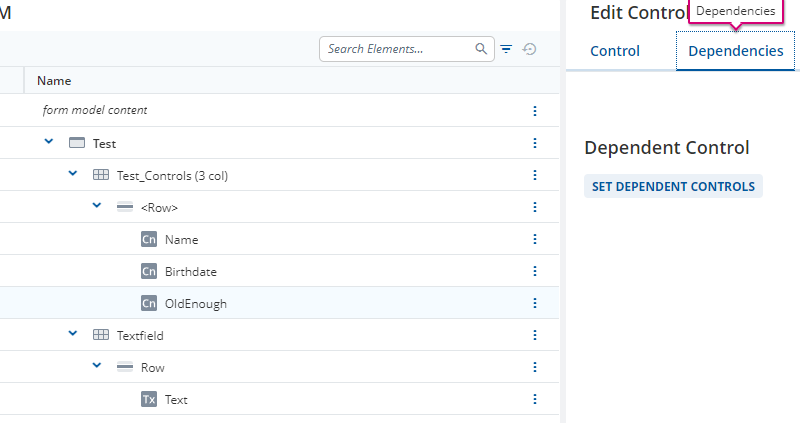
The Text is in a separate Control Grid “Textfield”, while the Confirm Field is in the Control Grid “Test_Controls.”. Now you can open the Confirm field “OldEnough” and find the Dependencies.
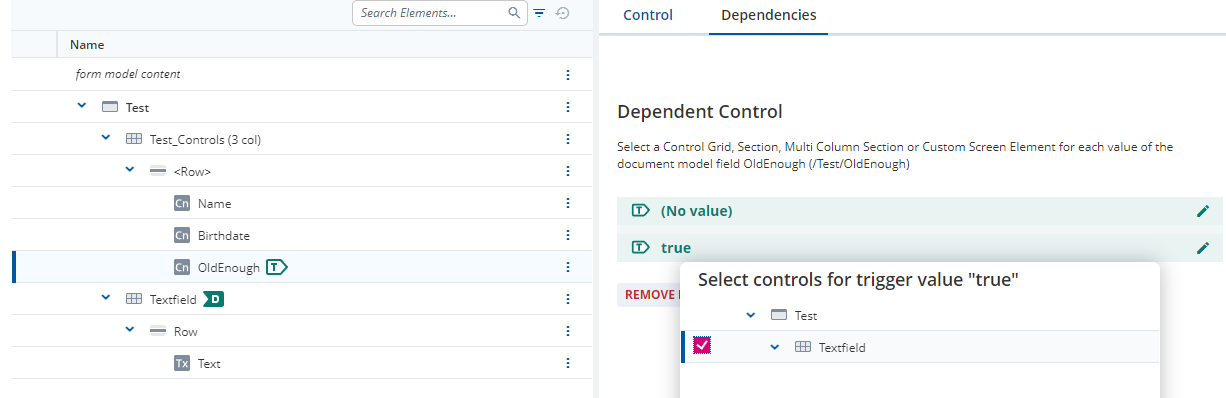
Here you can set the Dependent Controls. If you now choose for the Value “True” the Control Grid “Textfield” this Control Grid is only shown if the Confirm is true.
The Problem you might have, is that you don’t want to show the controlling field within the Form. Then you need some custom code to hide the controlling field. This is already solved in some projects with annotations.
I hope this is helpfull!
Just a few notes to @svenja-still-dawn’s answer
Control dependencies can be set for Controls that:
That means that either need to select the Field Type carefully or use a computed helper Field.
You can hide the Field using a Utility Class from the Widgets showcase. I should warn you that the Utility Classes are not end to end tested but in your case it should work. You just need to add it to your model as a Style.
So you need to:
Here are some 2024.06 models showing you that.
ShowWarning_DM.json (3.4 KB)
ShowWarning_FM.json (5.5 KB)
From 2024.06-ext4 you can also specify that the computations and dependnecies are evaluated when you open the Form. This is done in the pre-processing settings of the Form Model.